How to use AI'VIEWER?
For a visual guide, check out the tutorial on our Youtube channel:
Logging in
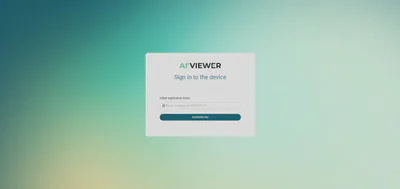
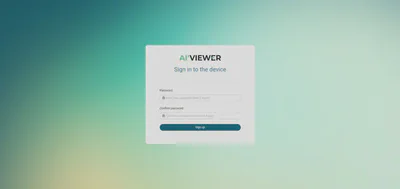
When you click the Login button, you will be redirected to the Web App. If you are logging in for the first time, you will be asked to enter a token and password. Once logged in, the status of your device will change to Connected.
You can copy the token by clicking the Connect to this device button.
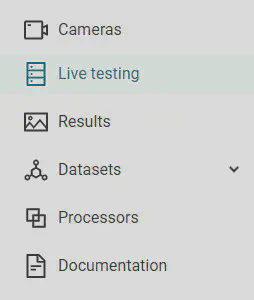
After logging into the service, you will find a menu with 6 tabs:
- Cameras
- Live testing
- Results
- Datasets: Generated, Uploads
- Processors
- Documentation
Camera
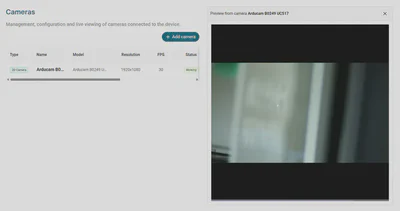
AI’VIEWER allows you to use your own cameras connected to the device. You can generate images and upload them to a dataset in your account. To use a new camera, click Add camera. We currently support the following camera types:
- Leopard Imaging MT9M021C USB
- Arducam IMX477HQ Camera CSI2
- Arducam IMX477HQ Camera USB
- Arducam 8MP 1080P USB
- Basler daA2448-70uc
- Basler daA2500-14uc
- Basler a2A1920-51gcPRO
- Basler a2A1920-51gmPRO
- Basler a2A2448-23gcPRO
- Basler a2A2448-23gmPRO
- LUCID TRIO54S-CC
- LUCID TRI032S-CC
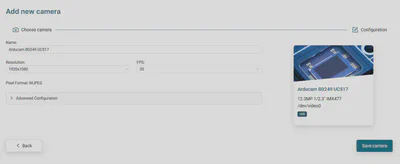
In this section you can configure the camera. Each camera provides different configuration options, including both basic settings and advanced configuration parameters.

After clicking Save Camera, your camera should be visible in the list of enabled devices. From here you can:
- Enter camera preview mode,
- Edit camera parameters,
- Remove the camera from the list.
Preparing the test
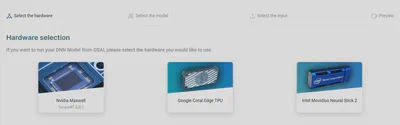
A device connected to the service automatically displays models that match the computing hardware specified during the device addition process and already converted.
AI’VIEWER displays a list of models available from the OSAI service according to the selected computing hardware. Currently, it is not possible to use a model other than the one from the OSAI service for an application.
If you do not see your model listed, please make sure it has been converted to a format compatible with your chosen hardware.
Downloading the model to AI’VIEWER
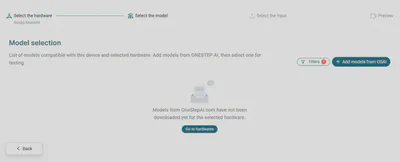
To run the selected model, download it to the device. Click Add models from OSAI.
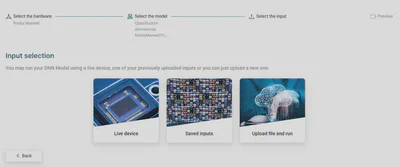
Select the model from the list and add the input data. The Web App allows you to test the model with a live video stream or on a saved video file that can be uploaded or selected from those stored on the device. A similar test can be performed on an image.
Running the test
When everything is ready, the test will automatically start for the loaded data. If you are using data stored on the device, click the Run Model button.
Running the model on a camera
Select Live testing and choose from the configured Cameras to use for your model. If you have one camera configured, go directly to the camera preview and dataset generation section. This allows you to create a dataset from the live recording that has detected classes and annotations.
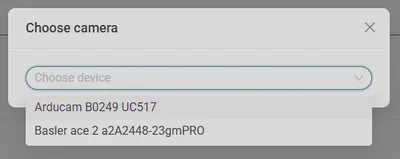
If you do not have any camera configured, the system will redirect you to the configuration panel.
Checking the results
After running the model on the selected source, you will be redirected to the page with the results.
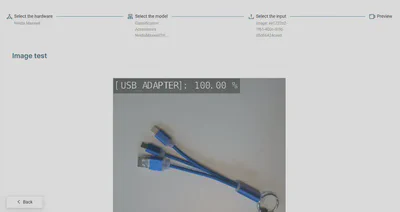
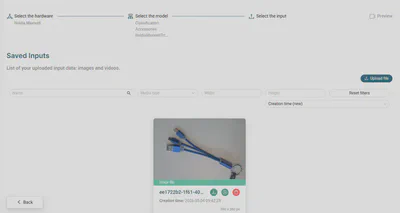
The image that was previously sent to the server can be found in the Saved Inputs view. You can now run a new (or the same) model on this data.
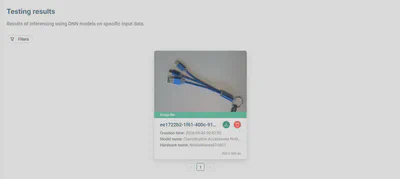
Results section, you will find the input image with the result of the model run added.
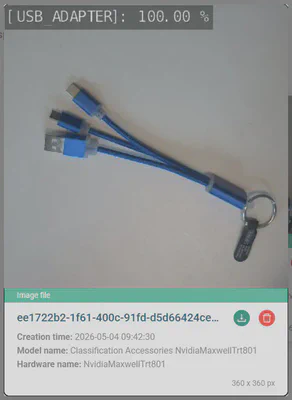
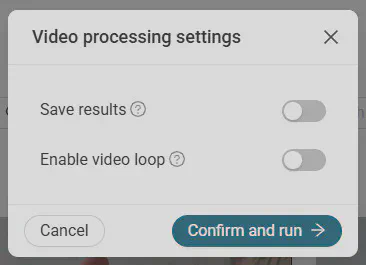
In the case of a video file, running the model will take you to a video player page. You can decide if you want to save the results and/or enable video loop. For detection networks, the resulting file will contain the selected recognition areas along with the labels of the objects that have been classified on them.
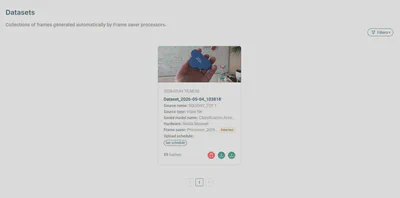
Generated datasets
In the Generated section, you can view your collections of frames generated automatically by Frame saver processors.
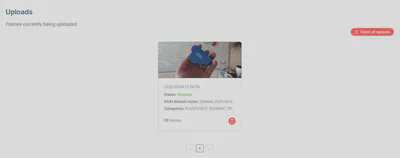
Uploads
In the Uploads sections, you can view currently uploaded frames.
Processors
In the Processors section, you can create and manage AI-powered vision processors with real-time camera monitoring. There are three types of processors:
Frame saver- Allows running an AI model on a selected camera or video source to count and store frames in a datasetRobotic 2d gripper- Enables selection and calibration of a 2D camera, robot synchronization, and execution of an AI model in this setupRobotic 3d gripper- Supports 2D and ToF cameras with calibration, synchronization, robot setup, and spatial object detection using an AI model