Model re-training
To improve the effectiveness of the trained model, you can subject it to a re-training process. To start, go to the Models section, hover over the gear icon and click the Re-train button on the selected model tile.
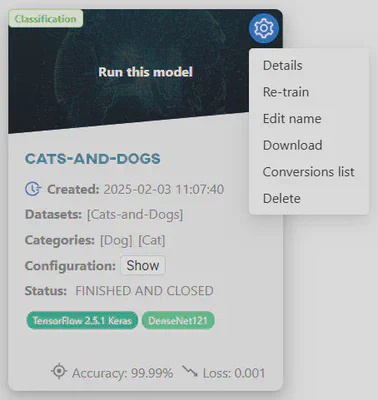
Retraining process consists of three steps:
- Editing the dataset;
- Merging object classes;
- Configuring the model.
Editing datasets
In the first step, select the datasets you want to use for the re-training process.
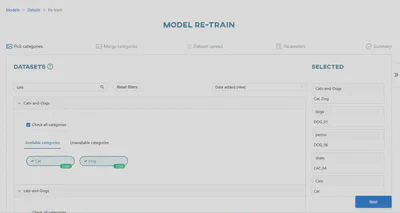
By default, the datasets that were used in the previous (original) training session are selected. You can deselect them if you want to use only the new datasets.
Merging object classes
Clicking the Next button takes you to the category merge view. It is slightly different from the original merge view:
- Categories from the previous training are automatically assigned to buckets
- If you have selected new categories, they will be assigned to the automatically generated
Unassignedbucket - If the name of a new category matches the name of an existing bucket, it will be automatically assigned to that bucket
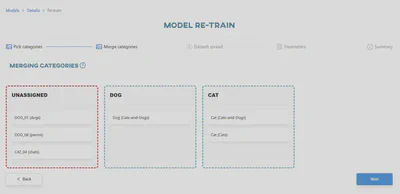
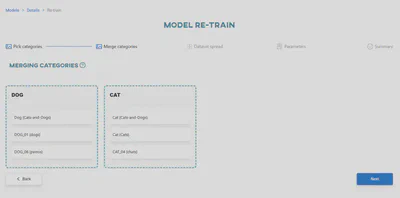
To start re-training, you need to move all dataset categories from the
Unassignedbucket into the appropriate buckets. Only then will theUnassignedbucket be automatically deleted and theRe-trainbutton be enabled. Each bucket must always contain at least one dataset category.
Dataset spread
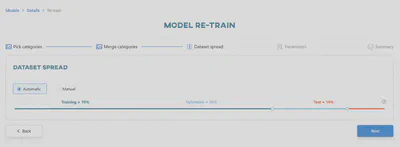
The next step is dataset spread. At this stage, you need to define how your dataset will be divided into three separate subsets:
- Training set – used to train the model
- Validation set – used to monitor performance during training and tune the model
- Test set – used at the end to evaluate the final accuracy of the model
OSAI usually suggests a default percentage split (70% training, 20% validation, 10% test), based on best practices from the literature. It is recommended to keep these default values unless you have a specific reason to change them. After setting the dataset spread, click Next.
Model configuration
Click Next to proceed to the configuring the model step. Define the name of the re-trained model and the number of epochs (for classification) or iterations (for object detection).
The model name must meet the same validation requirements as for regular training.
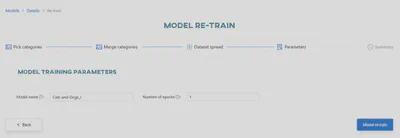
Click Model re-train to start re-training the model.